

Enroll in Multi-Factor Authentication
When logging in to an Mulit-Factor Authentication (MFA) enabled application for the first time, you’ll be
prompted to register an additional verification method. The recommended option is Auth0 Guardian
Push Notifications, but users may choose other supported methods such as Google Authenticator (or
similar TOTP app) or a Security Key (e.g., YubiKey).
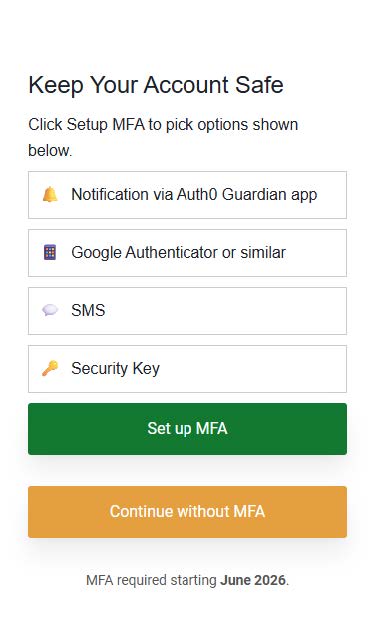
1- MFA Registration Prompt
After entering your username and password, you will see the MFA setup screen. You’ll be presented with multiple MFA options
- Notification via Auth0 Guardian app (Recommended)
- Google Authenticator
- SMS
- Security Key

2 – Setting up Auth0 Guardian for Push Notifications (Recommended)
Download the Auth0 Guardian App
- On your smartphone, open the App Store (iOS) or Google Play Store (Android).
- Search for “Auth0 Guardian”.
- Download and install the app.
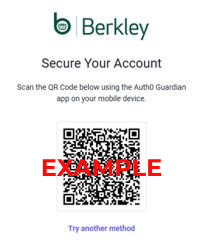
Scan the QR Code
- A QR code will appear on your computer screen.
- Open the Auth0 Guardian app on your phone.
- Tap Scan QR Code
- Point your phone’s camera at the QR code on your computer screen.
- Registration completes automatically once the scan is successful.
3 – Setting up an Authenticator App (Google Authenticator, Microsoft Authenticator, Authy, etc.)
If you prefer using a time-based one-time password app:
Select TOTP App
- Click Google Authenticator or similar on the MFA setup screen.
- Select Authenticator App
Scan the QR Code
- Open your preferred authenticator app (Google Authenticator, Microsoft Authenticator, Authy, etc.)
- Add a new account.
- Scan the QR code displayed on your computer screen.
Enter Verification Code
- Your authenticator app will immediately generate a 6-digit code.
- Enter the displayed code into the MFA setup screen.
- Click verify to complete setup.
4 – Setting up a Security Key (YubiKey or Similar FID02/WebAuthn Key)
If you choose to use a hardware security key:
Select Security Key
- Click try another method.
- Choose security key.
Register your Key
- Insert your security key (e.g., YubiKey) into your device’s USB port or tap it via NFC if supported.
- Follow the on-screen prompts to register the key.
- Touch or tap the key when prompted.
- Registration will confirm automatically.
5 – Setting up a SMS Authentication (Alternative Method)
Select SMS Authentication
- Click SMS.
- Enter your mobile number.
- Click send code.
Verify the Code
- You will receive an SMS with a one-time code.
- Enter the code on the MFA setup screen.
- Click Verify to complete registration.
Authenticating to an Application with MFA Enabled
1 – Log In
- Open the application.
- Enter your username and password.
- Click Log In.
2 – Complete MFA Verification
Depending on what you enrolled:
- Push Notifications (Guardian): You will receive a push notification. Tap Approve.
- Authenticator App (TOTP): Open your app and enter the 6-digit code.
- Security Key: Insert or tap your security key when prompted.
- SMS: Enter the verification code sent to your mobile device.
3- Enter Verification Code
- Your authenticator app will immediately generate a 6-digit code.
- Enter the displayed code into the MFA setup screen.
- Click Verify to complete setup.
Successful MFA Registration
After completing enrollment, you’ll see a confirmation screen indicating that MFA is enabled.

TROUBLESHOOTING
- Didn’t receive SMS?
- Ensure mobile number is correct.
- Check network coverage or signal strength
- Push notification not received?
- Verify your phone has an internet connection.
- Ensure notifications are enabled.
- Authenticator app codes not working?
- Verify your device’s time is set to automatic and accurate.
- Rescan the QR code if needed.
- Security key not detected?
- Try a different USB port.
- Ensure NFC or USB support is enabled on your device
Berkley Industrial Comp is providing this material for informational purposes only; it does not constitute legal advice or professional consulting services. Berkley Industrial Comp makes no representations or warranty regarding the accuracy or completeness of this material and expressly disclaims any liability for errors, omissions, or inaccuracies. Employers and other recipients should seek independent legal advice before making decisions based on this material.